
Update Payment Method & AutoPay
If you already have an automatic payment plan and need to update the credit card on file, follow these step-by-step instructions to keep your automatic payments active.
Step-by-Step Instructions
Click the Online Bill Pay button located in the upper-left corner of the Blossman Gas website navigation bar, then log in to your account.
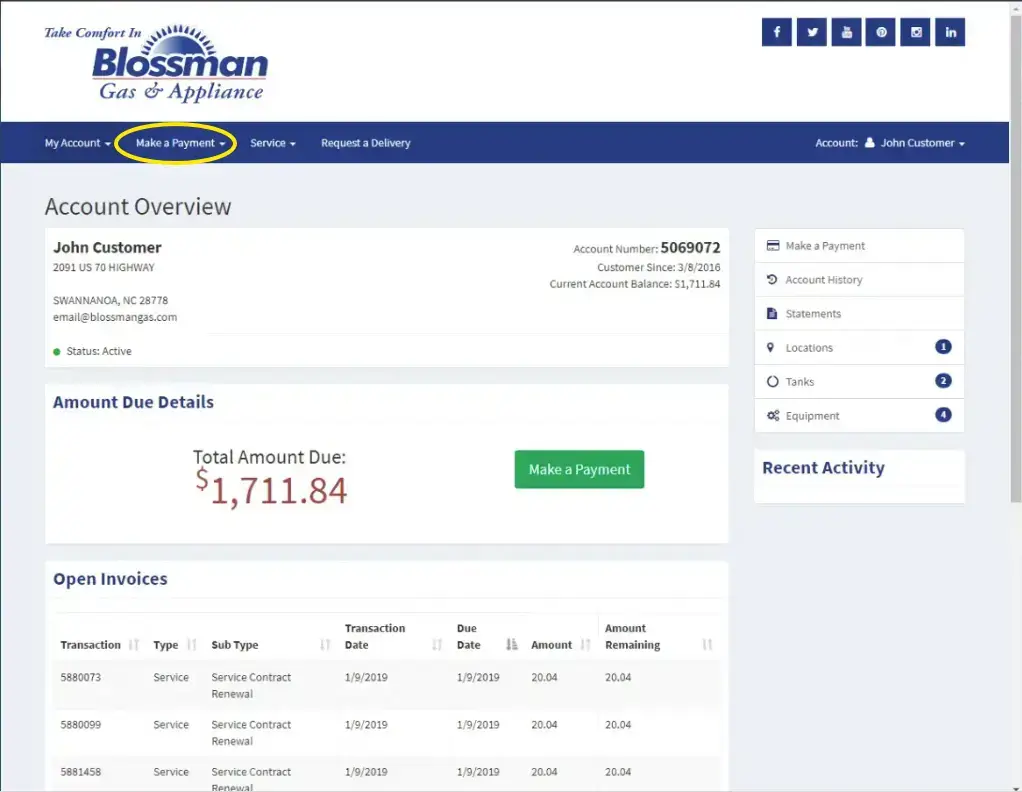
After logging in, you will be taken to your Account Overview page.
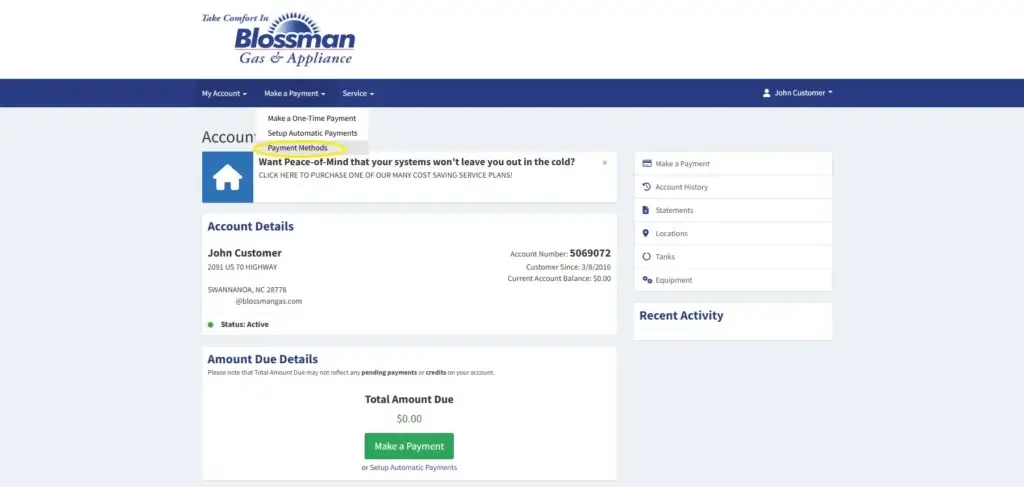
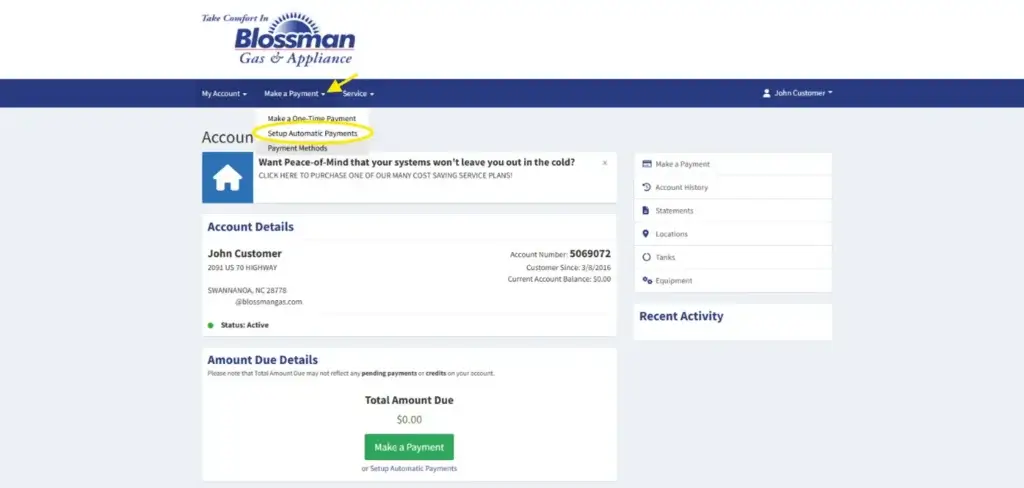
Click the drop-down arrow next to Make a Payment and select Payment Methods.
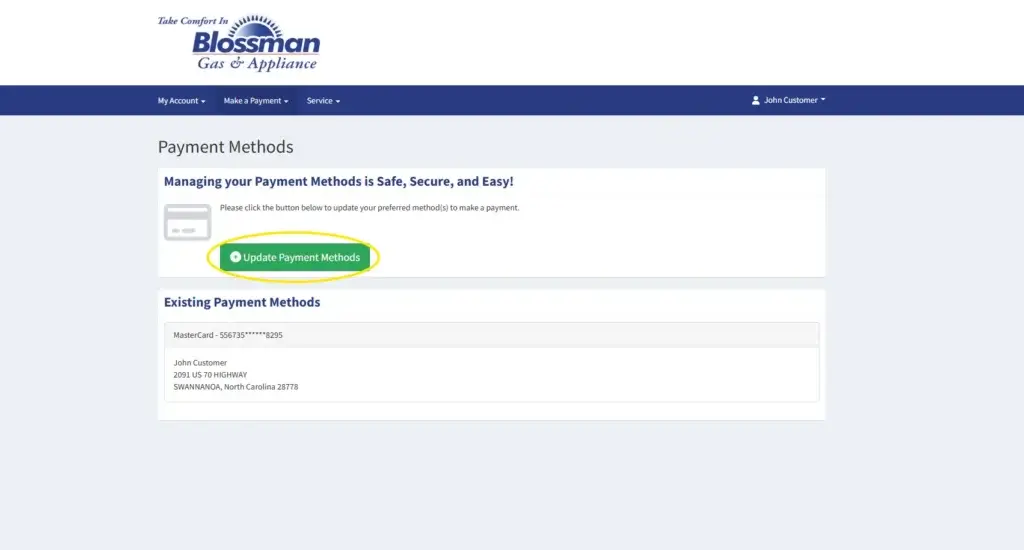
You will be taken to the Payment Methods page. Click the green Update Payment Methods button to enter your new payment information.
After selecting the green Update Payment Methods button, you will be directed to the next page. Click Add Payment Method to add your new card.
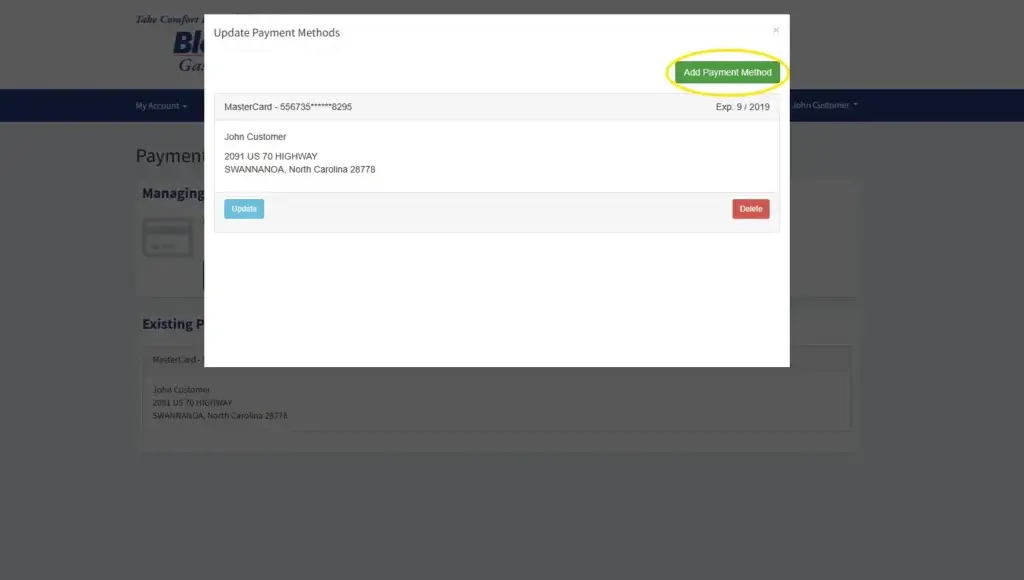
You will be taken to a page displaying your information. Review the details for accuracy, make any necessary updates, and then select Submit.

You will then see the page to update your payment method. Enter the details, then select Submit.
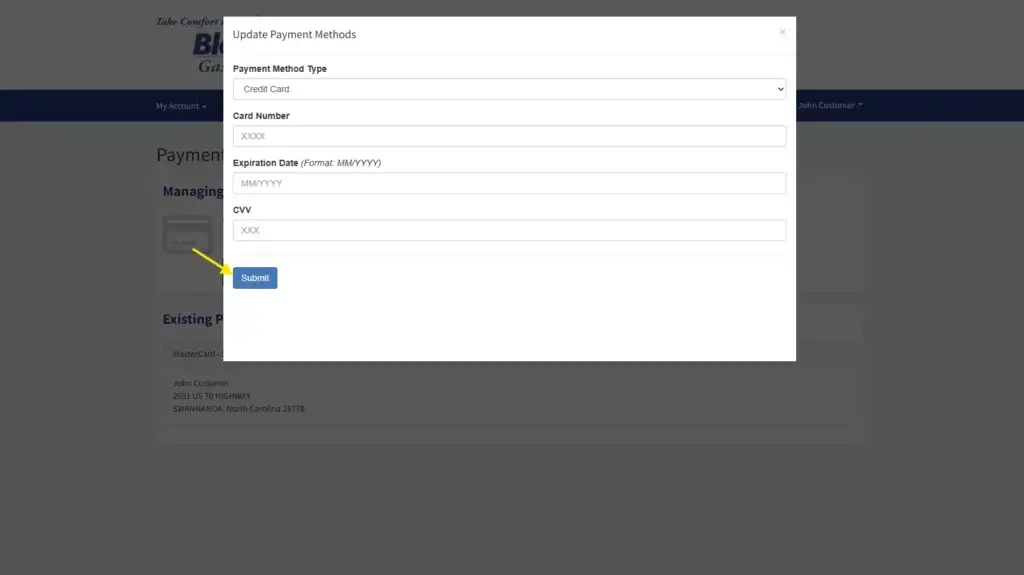
After submitting your updated payment method, you will see this confirmation page, indicating that your information was successfully updated. You may now close the page.

You then go to the drop-down arrow of Make a Payment and select Setup Automatic Payments.
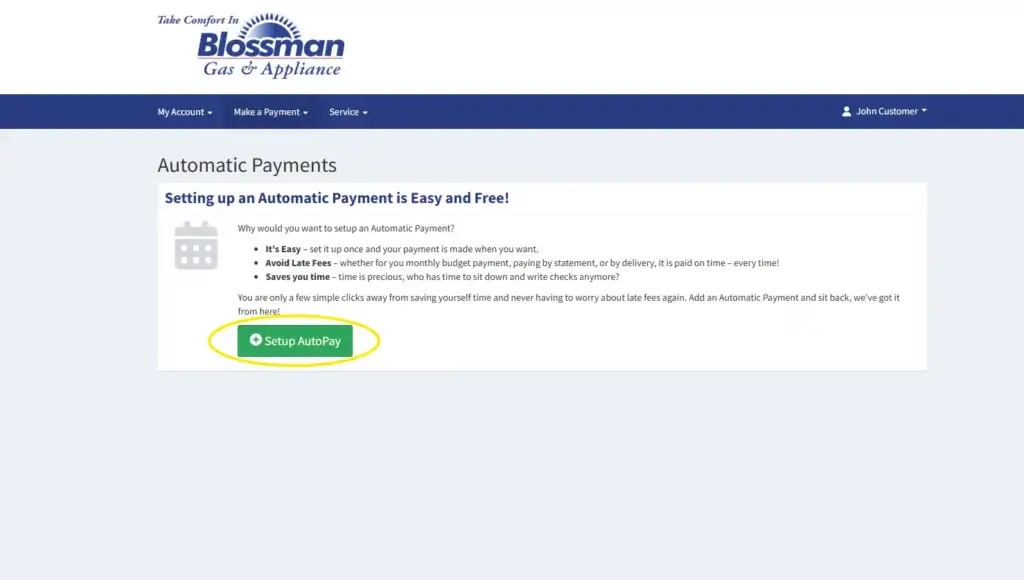
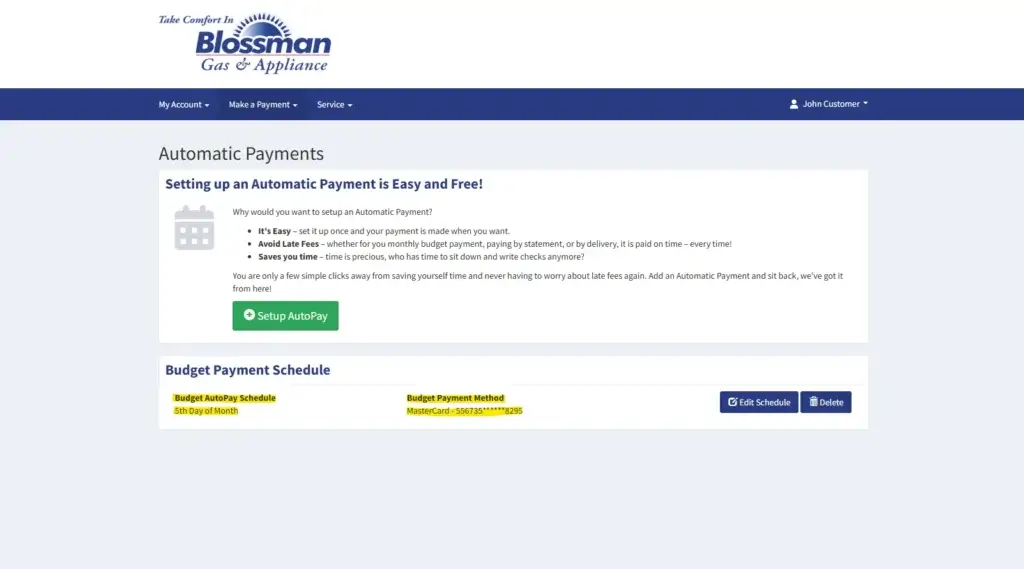
This is the page you will see, and you will click the green Setup AutoPay.
You will then select your Payment Schedule Type, select your new Payment Method, Schedule Type, and Day of Month. Click the check box to agree, then submit Save Changes.
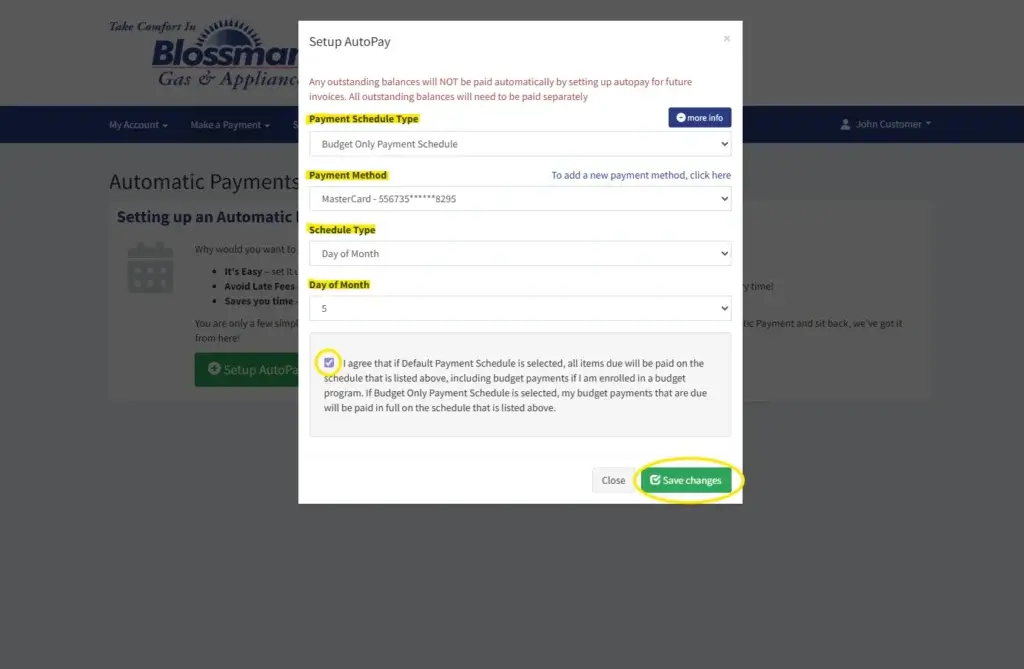
Now your payment method is updated, and your automatic payment plan is set up.
We hope this information was helpful in guiding you through updating your payment method and managing automatic payments in our online portal. If you have further questions, please do not hesitate to call 1-888-BLOSSMAN for assistance.
Thank you for choosing Blossman Gas.